Guide for podcasters
How to make vertical clips from a Zoom podcast recording
Plenty of shows record on Zoom because every guest already has it. The recording it gives you is wide, with two boxes side by side, and a phone wants a tall picture of one face. Here is which recording to make, and how to get from it to a clip.
The short answer
To make vertical clips from a Zoom podcast recording, record in gallery view so both people are in the picture all the way through, and turn on separate audio files as a backup. Then crop each clip to 9:16 inside one person’s box at a time, on whoever is talking, and caption it. By hand that is a cut and a reframe at every change of voice. Clip tools such as Shorts by Slice (ours), OpusClip, Vizard and Klap reframe to vertical for you; Slice finds the two boxes in a Zoom gallery, works out which voice belongs to which face, and crops inside the right box.
Shorts by Slice turns a long podcast or stream into captioned vertical clips. $14.99 a month. Your first video (we search the first hour) and first 2 clips are free, no card. After that, buy clips one at a time or take the plan, which you can cancel any time.
Try it free →Which Zoom recording to make
Zoom gives you fewer choices than you might expect. One podcaster, asking r/podcasting which settings to use, listed them:
“The only options I'm seeing are active speaker with shared screen, gallery with shared screen, and recording both.”
Those are the cloud recording layouts. Here is what each gives you for vertical clips, from Zoom’s cloud recording settings page and its page on recording layouts, read 13 November 2026:
| Recording | What is in it | For vertical clips |
|---|---|---|
| Gallery view | Everyone, in boxes side by side; with two people, two halves of the frame | The best start. Both faces are there all the time, so the crop can follow either person or show both. |
| Active speaker | One person at a time, full frame; Zoom switches to whoever it hears | Usable. The picture is bigger, but Zoom chose who to show, live, and you cannot show both people. |
| Active speaker, gallery view and shared screen separately | Separate video files of each view (cloud recording only) | The safest. Keep both and use whichever suits the clip. |
| A computer recording | Whatever the person recording had on their screen, speaker or gallery | Fine, if you switched to gallery view before you pressed record. |
Cloud recording needs a Pro, Business or Enterprise account. A free account records to your computer, from the desktop app only: Zoom’s page says computer recording is not supported on iOS, iPad, or Android devices. Because a computer recording copies your own screen, switch to gallery view before you press record.
Active speaker can work for an interview where one person asks and the other answers at length. The same thread had a warning about the other kind of show:
“Active speaker is great when the content involves Q and As. If it’s heavy dialogue between host and guests (think political shouting matches) , then you might run into problems.”
What Zoom gives you per person
Audio, yes. In the desktop app’s recording settings, “Record separate participant audio files” saves each voice as its own file. Turn it on before the call; it is the reason many podcasters put up with Zoom at all:
“It’s easy to use and give you the separate audio tracks which is great.”
Video, no. We found no setting in Zoom’s help pages on 13 November 2026 that saves a separate video file for each person. The cloud option that records views “separately” means the speaker view and the gallery view as two files, not one file per face. So for clips, the gallery recording is your camera on each person: each box is that person’s shot.
If you want a full-size video of each person, that is what remote recorders such as Riverside are for. Many shows stay on Zoom anyway, for the reason this podcaster gave:
“a lot of interview subjects are on very dodgy gear and zoom works with everything.”
From a wide call to a tall clip
A 9:16 crop of a 16:9 recording keeps about a third of its width. On a two-person gallery that third has to sit inside one box, or the clip shows the line between two video calls and half of each face. The rules that keep it watchable are the ones we follow in our guide to clips that follow the speaker:
- Crop inside one box at a time, on whoever is talking.
- Switch only on a real change of voice. Ignore a “yeah” or a laugh under 1.5 seconds, and hold every shot at least 3 seconds.
- Show both people stacked when you trade quick lines, rather than cutting on every one.
- Show the whole call on a blurred backdrop only for a moment where everyone reacts at once.
Three or more boxes are harder in any shape. The podcaster who answered the settings question above:
“I’ve noticed, once you get a 3rd window (person) up it looks clunky and “busy”.”
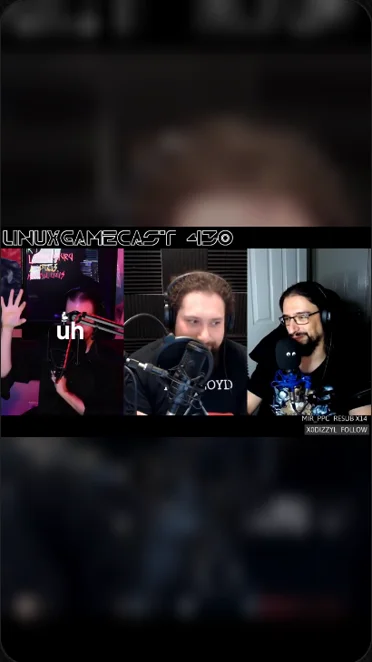

Expect the crop to be softer than the call looked on your laptop. In a two-person gallery each face is half the picture, so a tall crop stretches a small piece of the video to fill a phone. Light on your faces and a decent webcam do more for the clips than anything afterwards. Zoom’s HD page says 1080p meetings need a paid plan and have to be enabled by Zoom Support.
Doing it by hand, or with a clip tool
By hand, in CapCut, Premiere, Resolve or any editor: set the project to 1080x1920, cut the clip wherever the voice changes, and on each piece move and scale the picture so one box fills the frame. Add captions. It works, and it takes a while per clip.
With a clip tool, you upload the recording and the tool finds the moments, reframes them and captions them. OpusClip, Vizard, Klap and Choppity all describe following the active speaker on their own pages (we compared what each does with two people in the best AI tools for a two-person podcast).
In Slice, a Zoom gallery with two people is one of the recordings it is built for. It finds the two boxes, works out which voice belongs to which face by matching mouth movement to each voice, and crops inside the right box. If you uploaded speaker view instead, it looks for the person again at each change of picture. It follows two people; for three or more, use the whole call or a two-person split. It does not post for you. It is $14.99 a month, and your first video (we search the first hour) and first 2 clips are free, no card.
Zoom recording to vertical clips in Slice, step by step
- Record gallery view, or both views
For two people, gallery view gives you both faces for the whole episode, side by side. On a paid plan with cloud recording, ask Zoom to record active speaker and gallery view as separate files and keep both.
- Turn on separate audio files
In the Zoom desktop app’s recording settings, turn on “Record separate participant audio files” before you start. It is your backup if one voice is too quiet or someone talks over the other.
- Upload the gallery MP4
Drop the recording into Slice (MP4, MOV or WebM, up to 3 hours) and say it is a podcast or interview. Slice transcribes it and lists the moments that stand on their own.
- Pick the clips and check the framing
Tick the moments you want. On a two-box call each clip is cropped inside one box at a time, on whoever is talking. Play each one once; if the faces are matched to the wrong voices, Swap speakers in the Frame tab fixes it.
- Export vertical
Each clip comes out as a 9:16 MP4 with the captions burned in, for TikTok, Reels and Shorts. You can also pick 4:5, square or wide for the same clip.
Questions
How do I make vertical clips from a Zoom podcast recording?
Record the call in gallery view so both people are in the picture the whole time, download the MP4, and crop each clip to 9:16 inside one person’s box at a time, switching when the voice changes. By hand that is a cut and a reframe at every change of speaker in an editor such as CapCut or Premiere. Clip tools such as Slice, OpusClip, Vizard and Klap reframe to vertical on their own; Slice finds the two boxes in a Zoom gallery and crops inside whichever one is talking.
Should I record a Zoom podcast in speaker view or gallery view?
Gallery view, for two people. It keeps both faces in the recording, so the crop can follow either person and show both when you trade quick lines. Speaker view only ever has one person, and Zoom decides live who that is. On a paid plan, cloud recording can save both as separate files.
Can Zoom record each person’s video separately?
Separate audio, yes: “Record separate participant audio files” in the desktop app’s recording settings. Separate video per person, we found no option for in Zoom’s help pages on 13 November 2026. Its cloud recording can save active speaker, gallery view and shared screen as separate files, which is different. If you need one video file per person, a recorder built for podcasts such as Riverside does that.
Can I make vertical clips from a free Zoom account?
Yes. A free account can record to your computer from the Zoom desktop app, and that recording shows whatever your own screen showed, so switch to gallery view before you press record. Cloud recording, with its separate layout files, needs a Pro, Business or Enterprise account. Computer recording does not work from Zoom’s phone or tablet apps.
Why do my Zoom clips look soft when cropped to vertical?
Because each person is only part of the frame. In a two-person gallery each face sits in half the picture, so a tall crop of one box uses a small piece of the video and stretches it to fill a phone. Good light and a decent webcam help more than anything you do afterwards. Zoom’s help page says 1080p meetings need a paid plan and must be enabled by Zoom Support.
What about three or more people on the call?
Slice follows two people. For a panel of three or more, show the whole call on a blurred backdrop for the moment everyone reacts, or crop to one person when one person talks for a while. A podcaster in r/podcasting found that even the full call starts to look busy at three boxes.
Get The Cut
More guides
- Vertical clips that follow the speaker
- The best AI tool for a two-person podcast
- Turn a webinar or online class into clips
- Transcribe a Zoom recording, free
- How to start a remote podcast
Example footage on this page: LinuxGameCast Weekly 430, CC BY-SA 4.0. Zoom’s settings are from its own help pages, read 13 November 2026; Zoom changes its app often, so the labels may move.