Guide · For churches
How to make sermon notes from a YouTube video
From last Sunday on your church’s channel to notes a small group can use: the passages, the key quotes, an outline and questions, checked by a person. With a real sermon.
The short answer
If the sermon is on your church’s own channel, download it from YouTube Studio (Content, the video’s Menu, Download) and upload the file to Slice Transcribe. You get the sermon as text. With Transcribe hours, Slice also lists every Bible passage the preacher named with the time it was read, splits the sermon into parts, keeps the paragraphs you star as key quotes, and, if you ask, has AI draft an outline and small-group questions that you check against the sermon. Download it all as a Word file or print it. The judgement about what the sermon meant stays with the people who heard it.
Before you start: whose video is it?
This guide is for a sermon your church published. YouTube lets a channel download its own uploads, and that file is what you need. If the sermon belongs to another church, ask them for the recording or their notes rather than taking it from YouTube.
You may be tempted to cut the service down to just the sermon in YouTube first. You can, but as one church tech volunteer put it:
“YouTube allows you to cut out bits, but then that's more work.”
You don’t need to: the transcript has times on every paragraph, and the passages and parts tell you where the sermon starts.
How do you make sermon notes from a YouTube video, step by step?
- Download your sermon from YouTube Studio
Sign in to YouTube Studio on a computer, choose Content in the left panel, then open the sermon video’s Menu and choose Download. You get an MP4 file of a video your channel uploaded.
- Keep a copy
Save the file somewhere the church owns, such as a shared drive, before you do anything else with it.
- Upload it to Slice Transcribe
Open Slice Transcribe and upload the file. Transcribe takes files, not YouTube links. The free tool takes one recording a day up to 90 minutes; for the sermon tools, use Slice Transcribe hours (5 hours for $4.99, 15 hours for $9.99 or 40 hours for $24.99, paid once).
- Open it in Your transcripts
When it is ready, open the transcript from Your transcripts. If it names two or more Bible passages, the sermon tools switch on by themselves; if not, press "Is this a sermon? Turn on sermon tools".
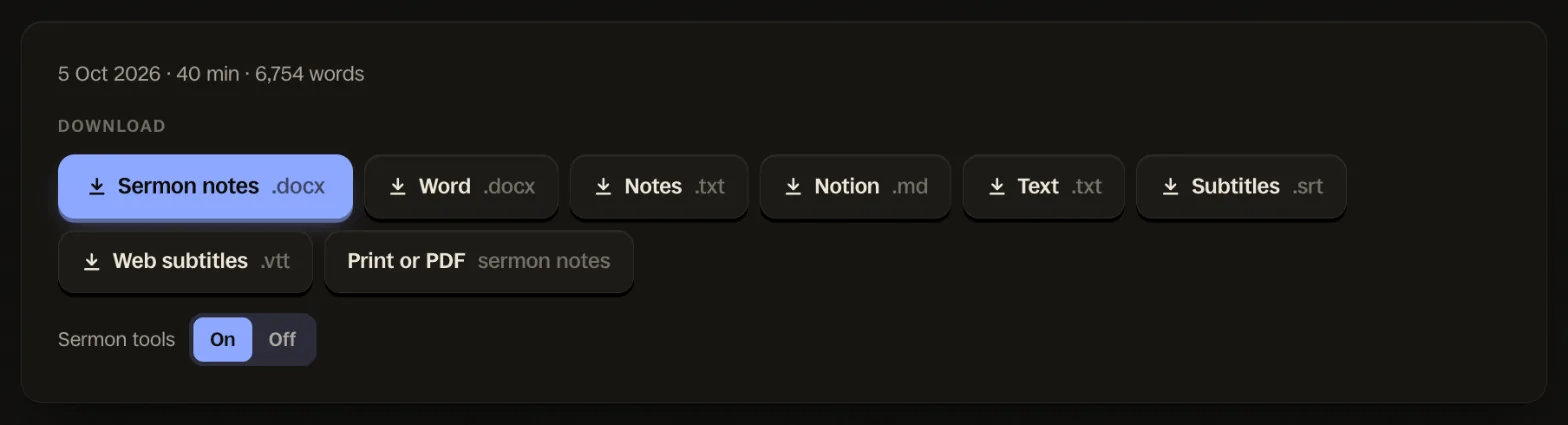
When a transcript reads like a sermon, Sermon notes comes first in the downloads, beside Print or PDF. The switch turns the sermon tools off for a talk that isn’t one, or on for one Slice missed. Tap to enlarge. - Check the passages
Read the "Scripture in this sermon" list. Each passage links to Bible Gateway, and each time jumps to where it was read. Add any passage the preacher referred to without naming book, chapter and verse.
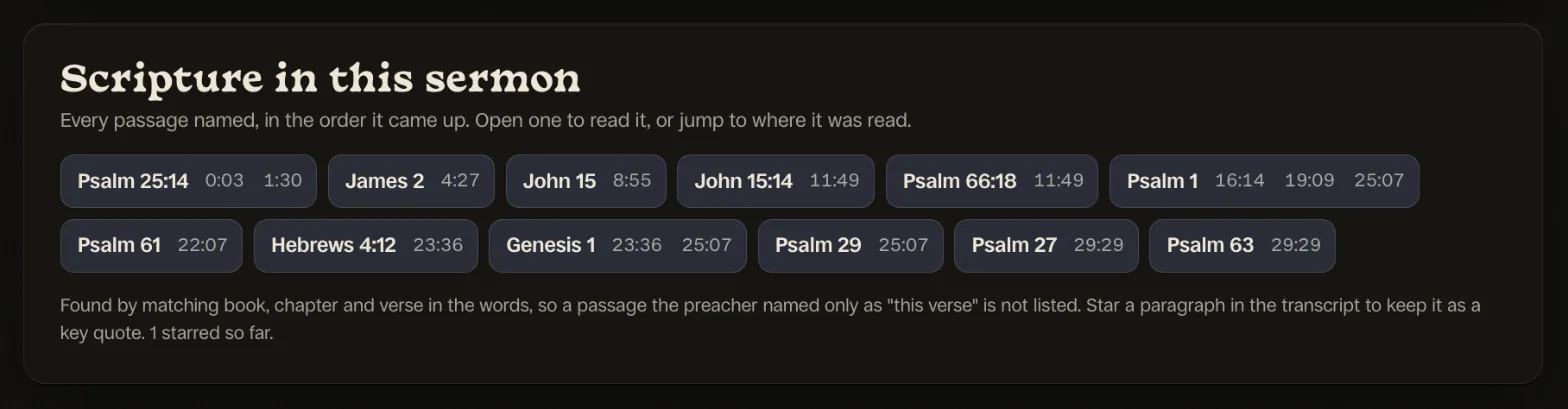
Every passage named in the Keller message, in the order it came up. The name opens the passage on Bible Gateway; each time jumps to that moment in the transcript. Tap to enlarge. - Star the key quotes
Read through the transcript, fix any word that came out wrong by clicking its paragraph, and press Quote on the paragraphs you want to keep.
![A paragraph of the transcript stamped [04:27], beginning "Moses as a man talks with a friend. You know, James chapter 2, I think 23, yeah." and running on about Aristotle and C.S. Lewis on friendship, with a highlighted "★ Quote" button at its end.](/shorts/guides/sermon-notes-star-2026-10.webp)
A paragraph starred as a key quote. Starred paragraphs go into Key quotes in the Sermon notes download, with their time. Tap to enlarge. - If you want, ask for an outline and questions
Press "Write the outline and questions". AI writes a big idea, the points in order and questions for small groups from this transcript only. Read every line against the sermon before you share it.
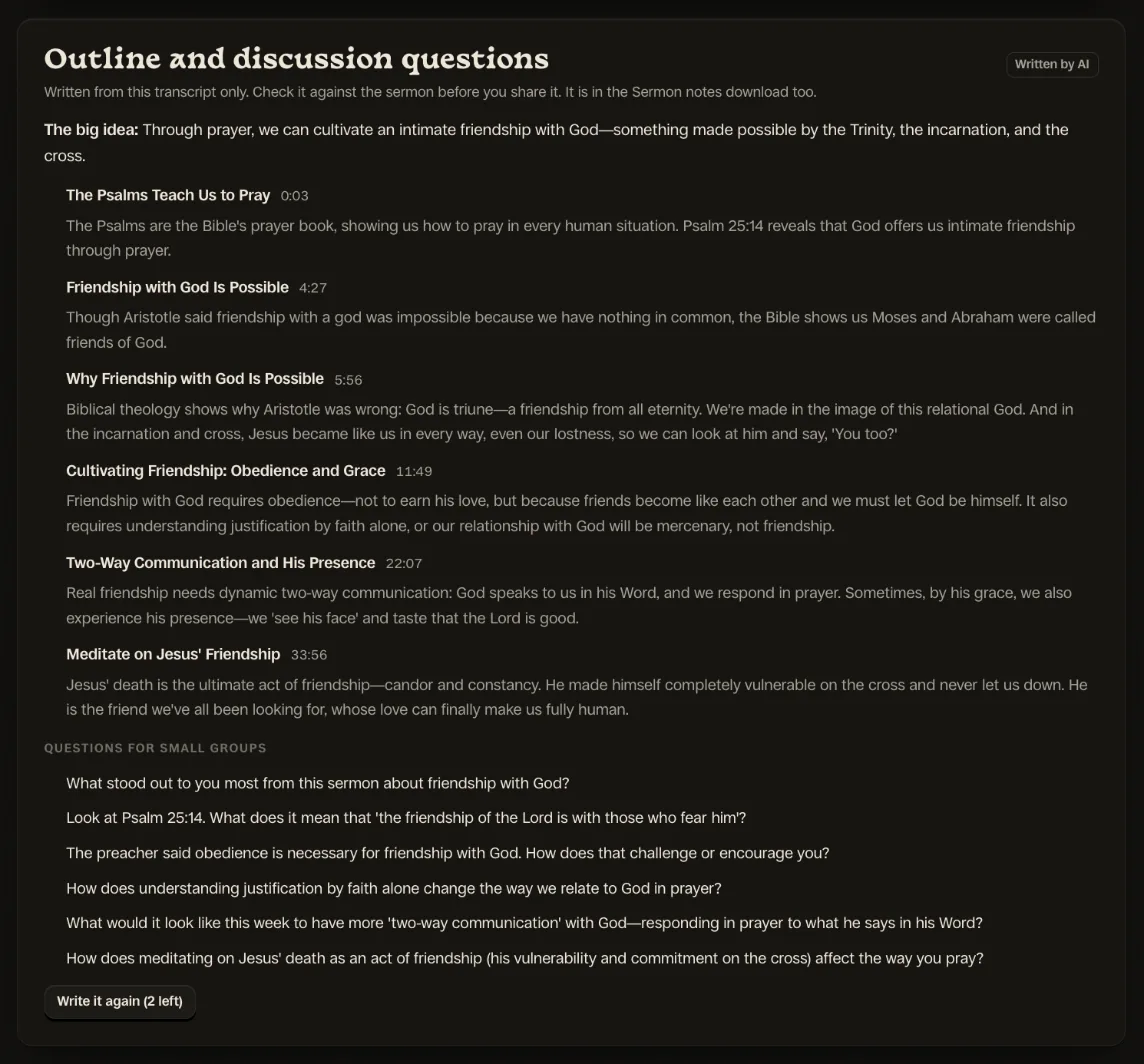
The outline and questions, written by AI from the transcript and labelled that way. Every point carries the time of the paragraph it comes from, so you can check it against what was preached. Tap to enlarge. - Download or print the notes
Download Sermon notes as a Word file to edit, or choose Print or PDF for a page you can print or save as a PDF. Take out anything said for the room only before it goes further.
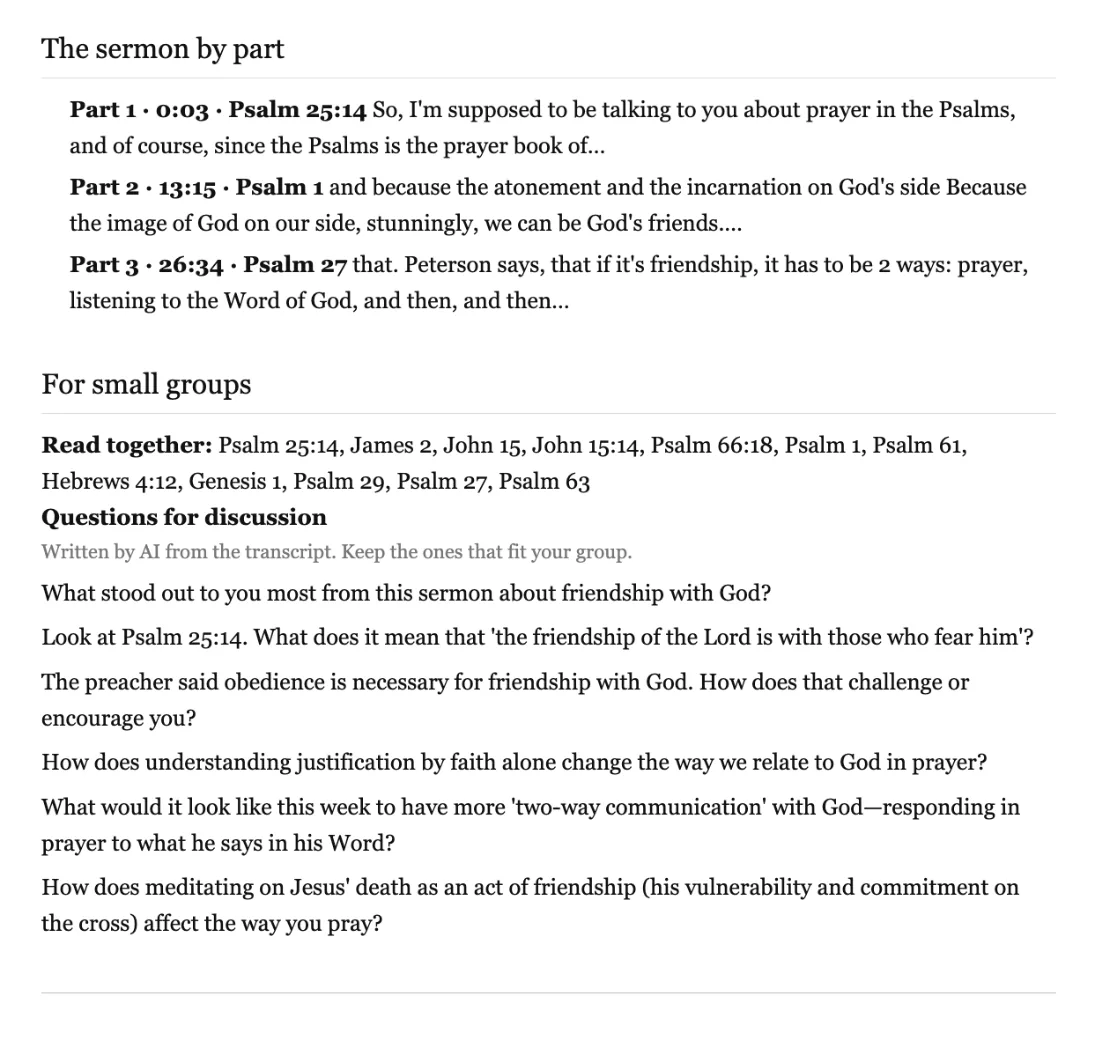
The print page, which your browser can save as a PDF: the sermon in parts, then a page for small groups with the passages to read together, the questions and room for the leader’s own. Tap to enlarge.
Getting the file out of YouTube
YouTube’s own help page, “Download YouTube videos that you’ve uploaded”, gives three steps: sign in to YouTube Studio, select Content in the left panel, then open the video’s Menu and choose Download. A few things it also says, worth knowing before Sunday night:
- It is an MP4 at 720p or 360p, depending on the size of the video. That is plenty for a transcript.
- Five downloads a video a day. Download it once, then copy the file.
- Not every video can be downloaded. A video that has been removed, has a copyright or Community Guidelines strike, or uses YouTube’s pre-approved audio tracks cannot be. Then use your stream software’s or sound desk’s recording instead.
If your stream software (OBS, for example) or your sound desk records too, that file is often cleaner than YouTube’s, and the transcript is only as clear as the sound. Either way, keep your own copy:
“YouTube is also known to freeze accounts, so you always want your own backups locally.”
You may have seen another route: let YouTube caption the video and download its captions. It works, with a catch:
“Also you can upload videos to youtube and get it to be auto captioned, then download the transcript, but you'll have to clean it up.”
Automatic captions come as short timed lines with little punctuation, not paragraphs, and with no list of passages.
A real sermon, made into notes
To show what you get, we transcribed a copy of Tim Keller’s “Let the Psalms Teach You to Pray” (39:46, published by The Gospel Coalition) on our own account with Transcribe hours, on 5 October 2026. It is not our church’s sermon, which is why we use it only as an example. Yours should be your own.
| What Slice gave | In the Keller example |
|---|---|
| The transcript | 40 minutes, 6,754 words, in paragraphs with a time on each |
| Scripture in this sermon | 12 passages, from Psalm 25:14 to Psalm 63, each with every time it came up |
| The sermon in parts | Part 1 · 00:03 · Psalm 25:14; Part 2 · 13:15 · Psalm 1; Part 3 · 26:34 · Psalm 27 |
| Key quotes | One paragraph starred, at 4:27 |
| Outline and questions (AI, on request) | A big idea, 6 points with times, and 6 questions for small groups |
| Downloads | Sermon notes (Word), Print or PDF, and Word, Notes, Notion, Text and subtitles |
What to check, using this example
- A passage the preacher named loosely. At 4:27 Keller says “James chapter 2, I think 23”. Slice lists it as James 2, which is safe; the verse he meant is James 2:23. Your notes can say so.
- A passage that is told, not named. The same paragraph opens on Moses speaking with God “as a man talks with a friend”, from Exodus 33:11, but without a book and chapter it is not in the list. Add it yourself.
- A part that starts mid-sentence. Parts start at the pauses a preacher leaves, so a part’s first words can begin in the middle of a thought. Use the part’s time and passage as a guide, not as a heading.
What Slice gives a sermon, exactly
| Tool | How it works | Written by |
|---|---|---|
| Scripture in this sermon | Every passage named with a book and chapter (“Romans 8”, “John 3:16”, “First Corinthians chapter 13”), once each, in the order it first came up, with every time it was read. The name opens Bible Gateway in the reader’s own translation; a time jumps to that paragraph. | Plain matching, no AI |
| The sermon in parts | A new part at a pause between paragraphs once a part has run at least four minutes, and in any case every twelve. Each part is labelled with its time and the first passage read in it. | Plain rules, no AI |
| Key quotes | The paragraphs you star. They go into Key quotes in the downloads, with their times. | You |
| Outline and discussion questions | On request: one sentence on the big idea, three to seven points in order, and four to six questions. Every point must name a real paragraph and carries that paragraph’s time. Up to 3 write-ups a transcript. | AI, labelled as AI |
| Sermon notes (Word) | The passages, key quotes, the outline if you asked for one, the sermon by part, a page for small groups with the passages to read together and the questions (with blank lines for your own), then the transcript under a heading for each part. | All of the above |
| Print or PDF | The same notes as a plain white page. Your browser prints it or saves it as a PDF, and the small-group page and the transcript each start on a new page. | All of the above |
These come with Slice Transcribe hours. The free tool gives the plain transcript with .txt, .srt and .vtt files, which is enough to make notes by hand.
Turning a transcript into notes by hand
With or without the tools, this is the part that needs a person who heard the sermon. A routine that takes about half an hour:
- Write the big idea yourself, in one sentence.
If you can’t, read the last five minutes of the transcript again: preachers usually land it there.
- List the passages.
The ones read aloud, then the ones referred to. These become “Read together”.
- Mark three to five quotes.
The lines you would put on a slide. Copy them exactly, from the transcript, with their times.
- Follow the movement.
Note where the sermon turns, in a line each. That is your outline.
- Write four questions.
One anyone can answer, one about the passage itself, one about the hardest thing the sermon said, and one about this week.
- Take out what was said for the room.
Prayer requests, names, pastoral news, anything about a member. Those never go in notes that leave the building.
Leave room in the questions for the group’s own. Small-group leaders on r/pastors put it well:
“let the people in the group ask the questions they themselves have about the text. Rather than focusing on the canned questions I bring in as the leader.”
“Then i have a sheet with a bunch of questions we discuss in categories.”
And use the notes to point back to the sermon through the week, which is what one church tech volunteer wished for:
“I think what would be helpful it to make small group study guides to go deeper with the sermon and make social media posts that both tease it before hand and tie back to it after.”
Using AI responsibly
Churches are using AI on sermons now, and the line most of them draw is the same: let it do the clerical work on what was preached, never the preaching.
“Don’t use AI to generate content. Use AI to help improve created content. For example, as others have mentioned, use AI to generate a transcript, perhaps even an outline or bullet-point summary, of sermon audio.”
“AI is fine for objective grunt-work stuff like transcription. I agree that it shouldn't be used for writing sermons or whatever.”
“I specifically tell it to leave the theology and doctrine alone, and it actually does. However, I would never let AI write my sermons.”
The work AI is good for comes after the sermon, from its words:
“Most often in the post-sermon writing phase. One is to look for counter arguments to my points, another is to help come up with small group questions or material that could be used for daily devotions.”
“used as a draft for study guides, sermon notes, transcripts, and social clips.”
What that means in practice, and how Slice is built for it:
- From the transcript only. Slice tells the AI to write only from what the preacher said and not to add teaching or passages of its own, and keeps a point only if it is tied to a real paragraph.
- Labelled, everywhere. “Written by AI” on the page, in the Word file and on the print page, so nobody mistakes it for the pastor’s words.
- Checked by a person. Someone who heard the sermon reads every line before it is shared. Slice can check a point comes from a real paragraph; it cannot check the theology. You can.
- The sermon stays the preacher’s. Nothing on this page writes, rewrites or summarises a sermon for preaching.
Before the notes leave the building
A service transcript has everything that was said, including things that were only ever meant for the people in the room: prayer requests, names, someone’s illness, a family’s news. Read the transcript through and take those out before anything is emailed, printed for visitors or put on the website. Your transcripts are private to your account until you share them.
The same sermon, as clips
The recording you just transcribed can also become a week of short captioned clips. Slice Shorts takes the YouTube link, finds the moments that stand on their own and frames them for Reels, Shorts and TikTok: see how to turn a sermon into short clips, and church Reels ideas for the rest of the week.
Get the Slice Weekly
One free email every Friday: tools for creators and the best advice we found from people who make things.
Questions
Can I paste a YouTube link into Slice Transcribe?
No. Transcribe takes a file. If the sermon is on your church’s channel, download it from YouTube Studio (Content, the video’s Menu, Download) and upload that. Slice Shorts, which makes clips, does take a YouTube link.
What if it is not our church’s video?
Ask the church for the recording or their notes. A sermon belongs to the preacher and the church that published it. For your own study, YouTube often offers a transcript under a video’s description, and you can take notes from that as you watch.
Is it free?
The plain transcript is: one recording a day up to 90 minutes, with .txt, .srt and .vtt files. The sermon tools (the passages, parts, starred quotes, AI outline and questions, the Sermon notes file and the print page) come with Slice Transcribe hours: 5 hours for $4.99, 15 hours for $9.99 or 40 hours for $24.99, paid once, never expiring.
Does Slice write the sermon notes for me?
The passages, parts, times and quotes come straight from the transcript, with no AI. The outline and questions are written by AI only if you ask, from that transcript only, labelled as AI on the page, in the Word file and on the print page. Someone who heard the sermon should read them before they are shared. Slice never writes a sermon.
Will it find every Bible passage?
It finds the ones the preacher names with a book and a chapter, such as "Romans 8" or "John 3:16". A passage told as a story or called "this verse" is not listed, and it reads English book names, so a sermon preached in another language may get a transcript with no passage list.
Our whole service is two hours. Can I upload all of it?
Yes, with hours: one recording can be up to 3 hours, and the sermon tools work across the whole thing. Trimming to the sermon first keeps the notes tidy and uses fewer hours.
Who can see our transcript?
Only your account. A transcript made with hours stays on your account until you delete it; free transcripts are deleted after 30 days. Nothing is published unless you publish it.
More for churches
- Sermon transcription: upload a sermon and try it, free.
- Church Reels ideas: what to post from Sunday and the week around it.
- How to turn a sermon into short clips: the steps, with the same sermon.
- Sermon clips for churches: a weekly routine, captions and pricing.